What this LoRA does
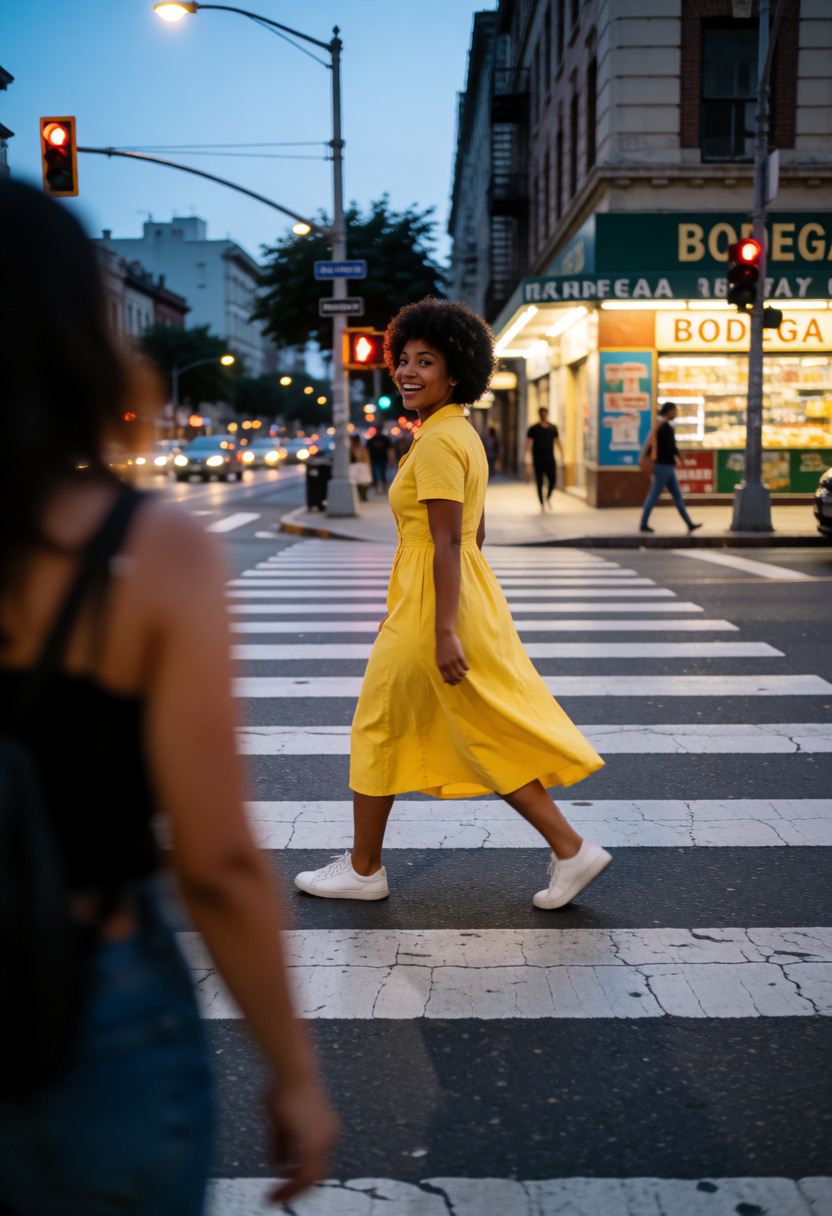
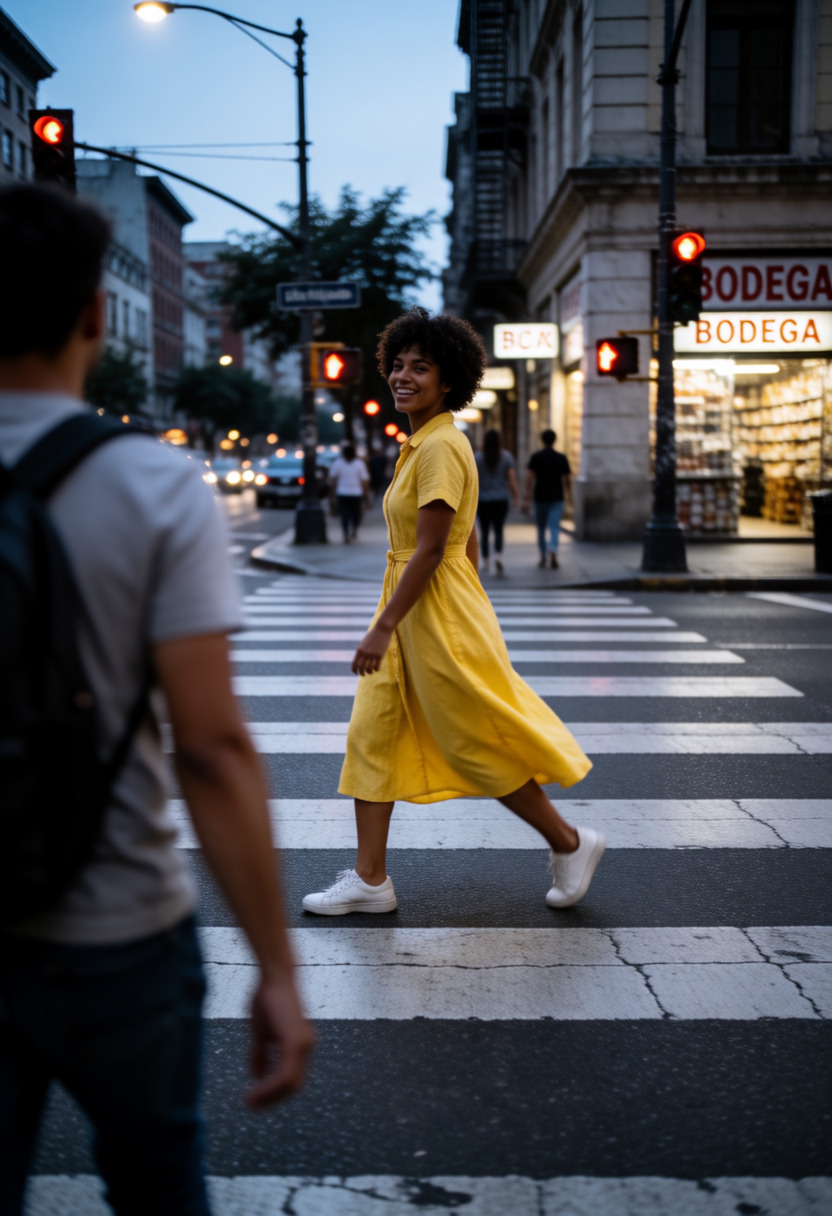
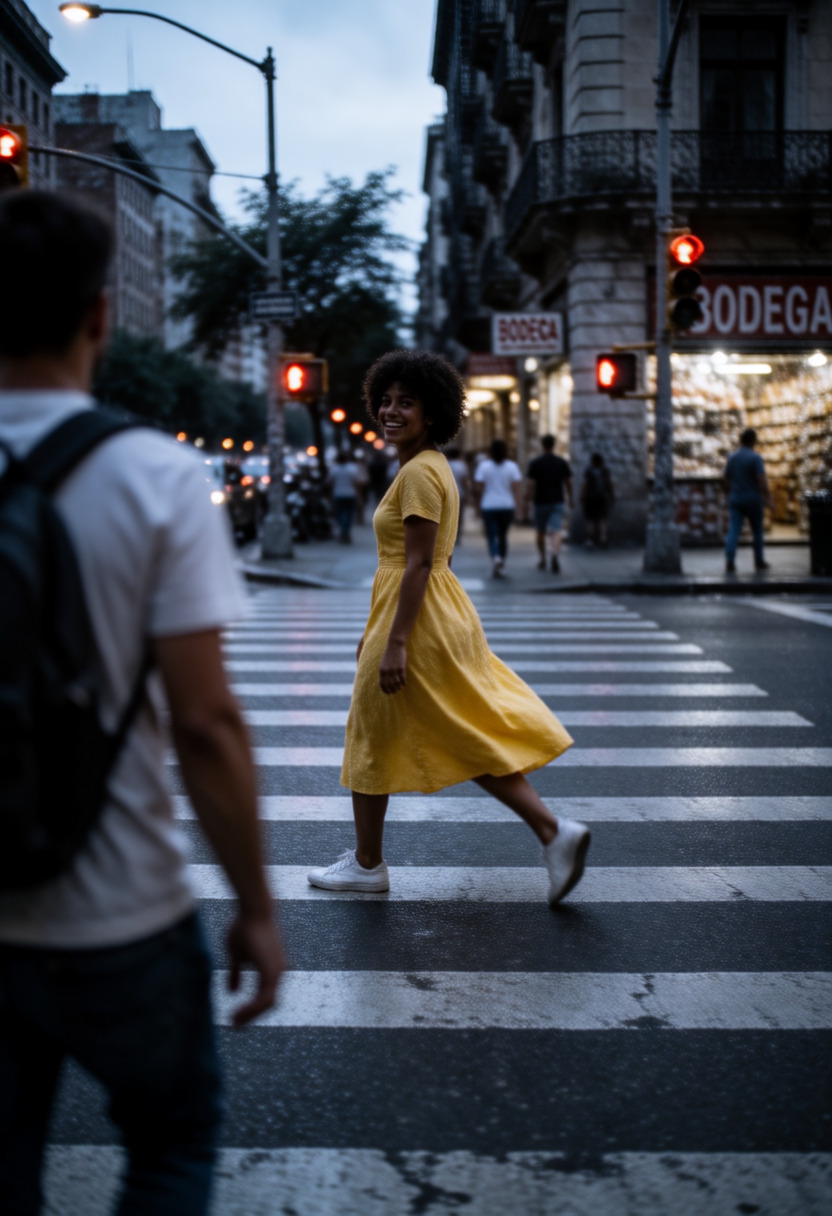
A style steering wheel. Negative values push the image toward illustration, positive values push it toward realism. If the model is looking a little too much like concept art, push it toward realism; if it is getting too photographic and losing the illustrated charm, pull it back the other way. Values around -1 to +1 are usually the sweet spot.
How to use Illustrated <-> Realistic
- Open the preloaded Sogni setup.The button below opens Krea 2 Turbo with this LoRA already attached, even when you need to sign in first.
- Review the selected LoRA.It is loaded at the catalog default below. No download, install, search, or ComfyUI setup is required.
- Start at +1 and adjust.The recommended range is -1 to +1. Use the lowest strength that produces the effect you want.
Examples
All 5 catalog examples are included below. Strength comparisons stay in their original order so you can judge the effect without guesswork.
Strength comparison
Use this prompt →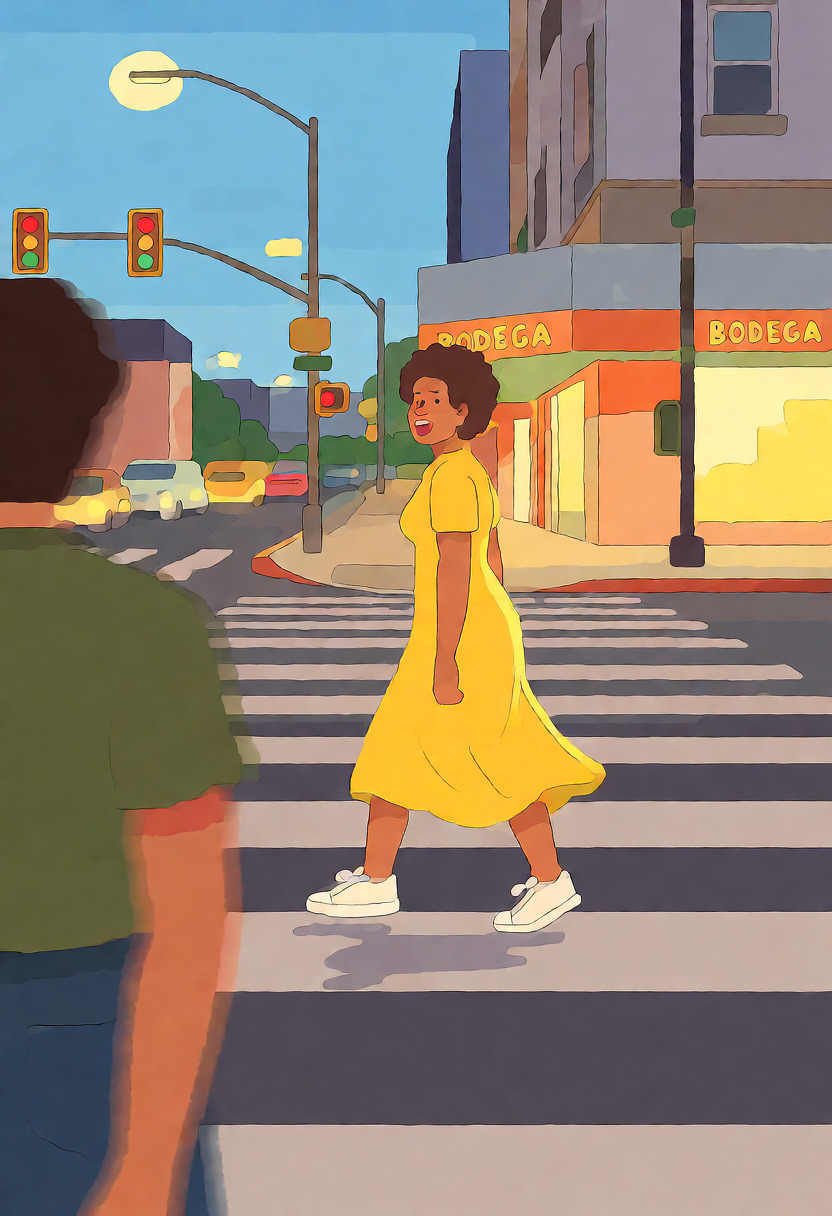

Compatible model guides
This LoRA is available with every Krea 2 workflow below. Follow a model link for its examples, settings, pricing, and direct Sogni Create launch.
krea2_turbo_fp8_scaledView model guide →Krea 2 Identity Edit v1.2krea2_identity_edit_v1_2View model guide →Dark Beast Krea 2 v3dark_beast_krea2_fp8View model guide →Dark Beast Krea 2 Identity Edit v1.2dark_beast_krea2_identity_edit_v1_2View model guide →Sogni Krea 2 Identity Edit v0.3 Alphakrea2_identity_edit_sogni_v0_3_alphaView model guide → Questions about Illustrated <-> Realistic
What does Illustrated <-> Realistic do?
A style steering wheel.
What strength should I use for Illustrated <-> Realistic?
Start at +1. The recommended range is -1 to +1; use the lowest strength that gives you the effect you want.
Which models work with Illustrated <-> Realistic?
Illustrated <-> Realistic is available on Krea 2 Turbo, Krea 2 Identity Edit v1.2, Dark Beast Krea 2 v3, Dark Beast Krea 2 Identity Edit v1.2, Sogni Krea 2 Identity Edit v0.3 Alpha.